How to extract image text offline and keep it in Markdown notes
Use built-in Korean/English OCR, correct the result, and save the image and your explanation in a searchable local note.
Save the reason you captured it
A screenshot alone may be hard to understand a week later. An error message needs the action that triggered it. A learning reference needs a source and a takeaway. Keeping the image, recognized text and your own explanation together makes the capture more useful as a record.
1. Open the image and choose built-in OCR
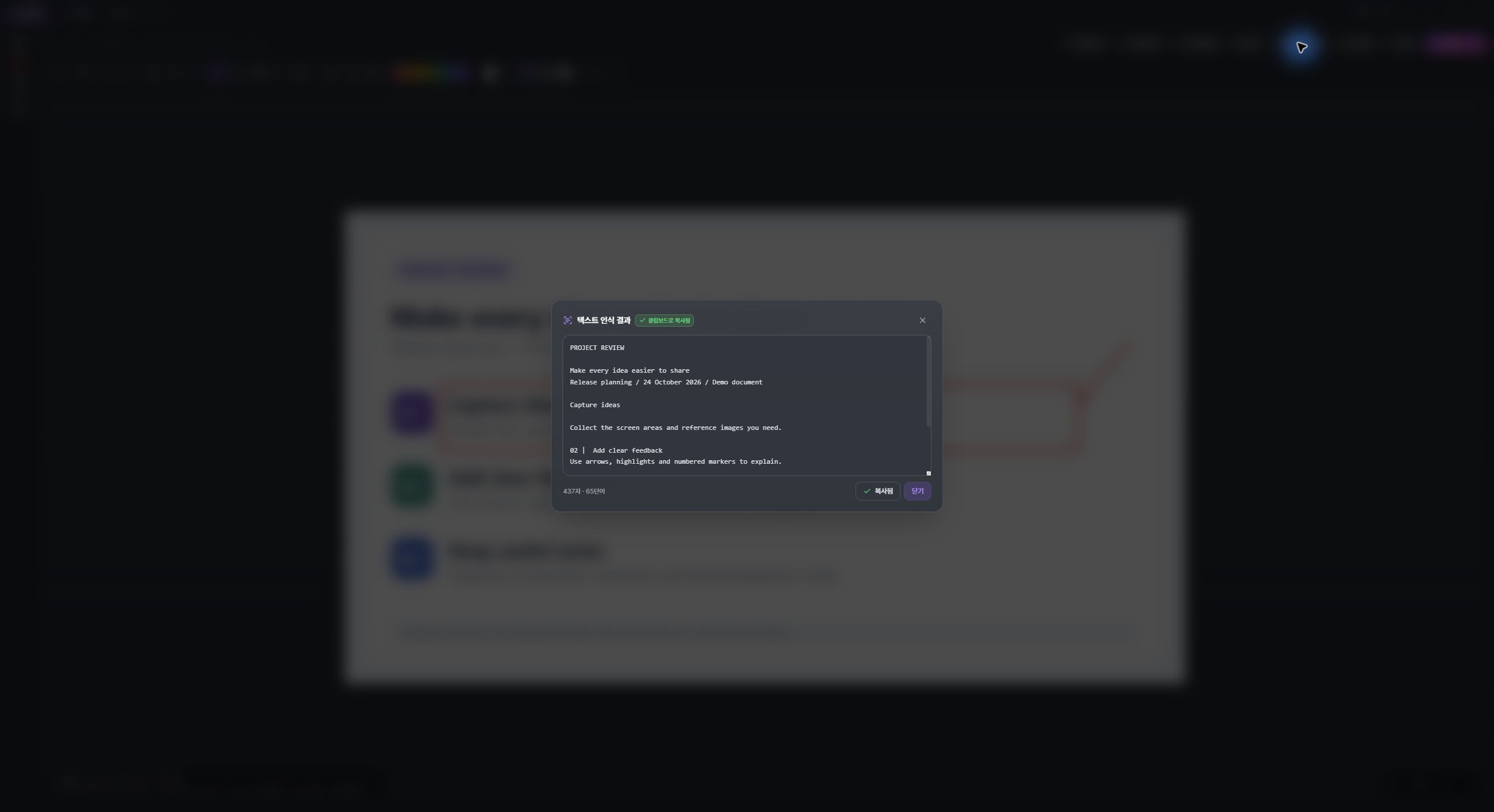
Capture a region with Ctrl+Shift+P or open an existing image. Choose Text recognition and select the built-in OCR option. It recognizes Korean and English on your PC. An external AI account is not required for this built-in recognition path. The sample screenshots show Korean UI labels; the app also has an English interface.
2. Correct the recognized text
Check punctuation, code, numbers and line breaks against the source image. OCR can make mistakes, especially in tiny text or complex layouts. Edit the result before you paste it into another document. For an error message, preserve the exact wording and error code instead of replacing them with an unverified summary.
3. Save the capture as a note
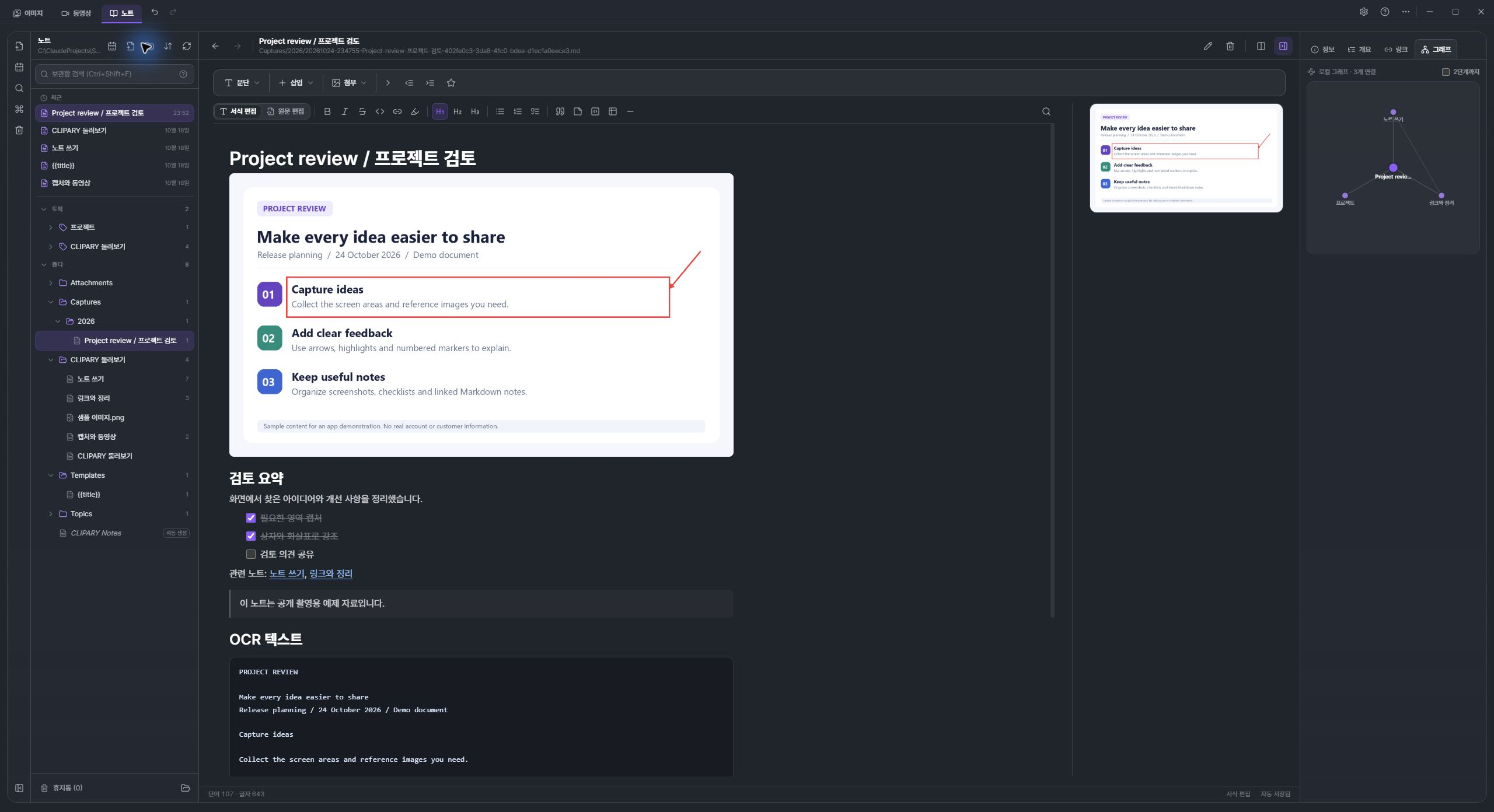
Open the note action from the image result, add a title and explain why the capture matters. You can include the OCR result when saving the note; it is placed in an OCR text section. A useful note might include “What I was doing”, “What happened”, and “What to try next”. Keep the original image so you can verify the extracted text later.
4. Make the note easy to find again
Use folders, tags and topics to organize the local Markdown vault. Link a related note with [[note links]] and use vault search to find a phrase later. You can open notes side by side when comparing references. CLIPARY can also work with an Obsidian vault; choose the intended folder in Settings and consult the in-app help before reorganizing an existing vault.
Built-in OCR and optional AI are different paths
The optional AI organization feature uses a separately installed and signed-in Claude Code, Codex CLI or Gemini CLI. After confirmation, the selected image and instructions are sent to that provider; its account requirements, terms and costs may apply. AI organization currently returns Korean Markdown. Use built-in OCR when your task is simply to extract Korean/English text locally.
Watch the real workflow
Recorded in the real CLIPARY desktop app, cropped and edited for pace. Includes English AI narration, captions and music. The demonstration content is synthetic.
Try CLIPARY for Windows
Free for Windows 10/11 64-bit. Built-in OCR and ordinary capture, editing, recording and notes run on your PC. Optional external AI has separate account, tool and provider requirements. Support is voluntary.
Free download from Microsoft